How to Fix Trello Desktop App Syncing Issues on Windows 11


Asif Mohammad Sovon
Asif Mohammad Sovon, IT Assistant at Bangladesh Air Force and Fileion tech writer, simplifies tech t...
What is Trello Desktop App Syncing?
Step-by-Step Guide: How to Fix Trello Desktop App Syncing Issues on Windows 11
Why does Trello not sync automatically to Windows 11?
How do I clear the Trello cache on Windows 11?
Does reinstalling Trello fix syncing issues?
You open Trello on your Windows 11 desktop, and something feels off. Your cards are missing. The deadline you updated yesterday still shows the old date. Your teammate's comment is nowhere to be found. Sound familiar?
Trello syncing issues on Windows 11 are more common than most people expect. They silently disrupt workflows, cause missed deadlines, and create confusion across teams. When your boards stop updating in real time, productivity takes a hit.
In this guide, you will learn exactly why Trello stops syncing on Windows 11 and how to fix it using clear, tested steps. Whether you are a solo user or part of a large team, these solutions work.
Let's dive into the basics before moving to the hands-on steps.
What is Trello Desktop App Syncing?
Trello is a visual project management tool built around boards, lists, and cards. It keeps all your data synchronized in real time across every device and user in your workspace.
The Trello desktop app for Windows 11 is a wrapper built on the Electron framework. It connects to Trello's cloud servers to push and pull updates. When syncing works correctly, changes appear within seconds. When it breaks, your app gets stuck on a cached version of your data.
Project managers, software developers, marketing teams, remote workers, and students all rely on Trello for daily task management. A sync failure in any of these environments can block real collaboration.
Sync issues on Windows 11 are usually caused by network interruptions, corrupted cache files, outdated app versions, firewall blocks, or background process conflicts introduced by recent Windows updates.
Step-by-Step Guide: How to Fix Trello Desktop App Syncing Issues on Windows 11
-
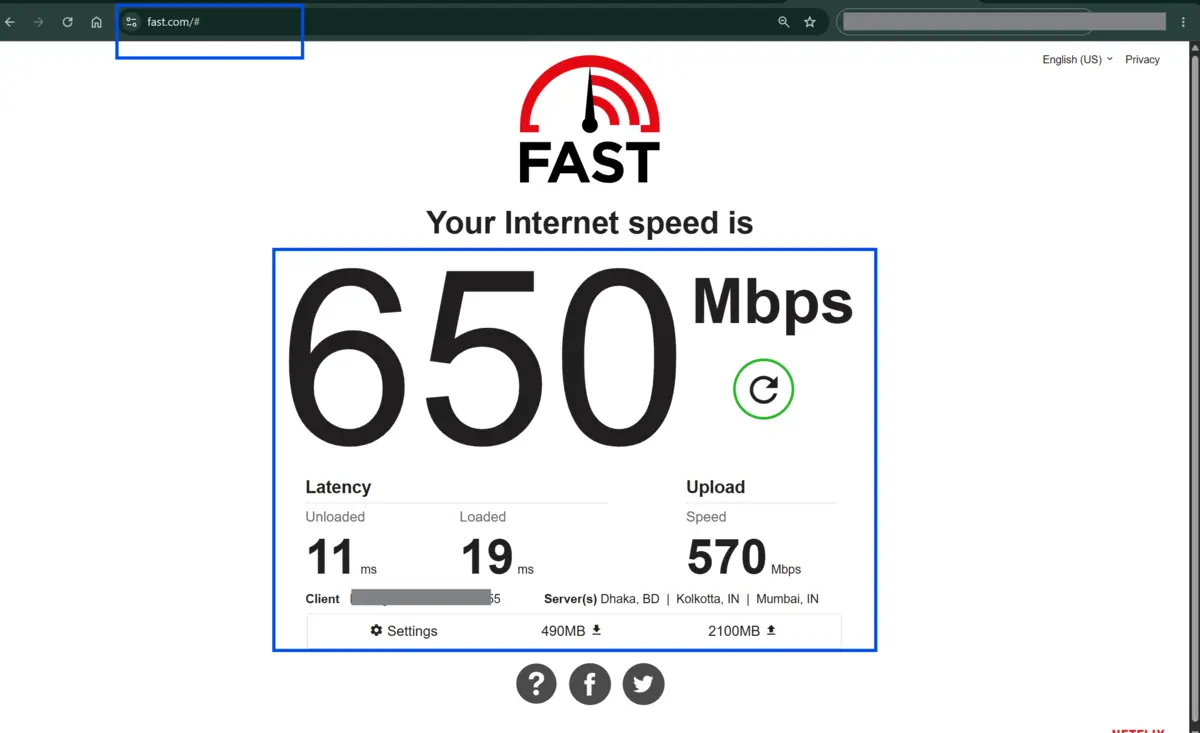
Check your internet connection first: Open a browser and load any website to confirm your network is active. Trello requires a stable internet connection to sync. If your connection is slow or dropping intermittently, the app will fail to pull updates. Restart your router if needed before continuing.
-
Restart the Trello desktop app: Do not just minimize it. Right-click the Trello icon in the system tray and select Quit. Then reopen it from the start menu or your desktop shortcut. A full restart clears temporary connection states that block syncing.
-
Force manual sync: In the Trello app, press Ctrl+R to trigger a hard reload. This forces the app to re-fetch all board data directly from Trello's servers. It is the fastest single fix for cards appearing outdated.
-
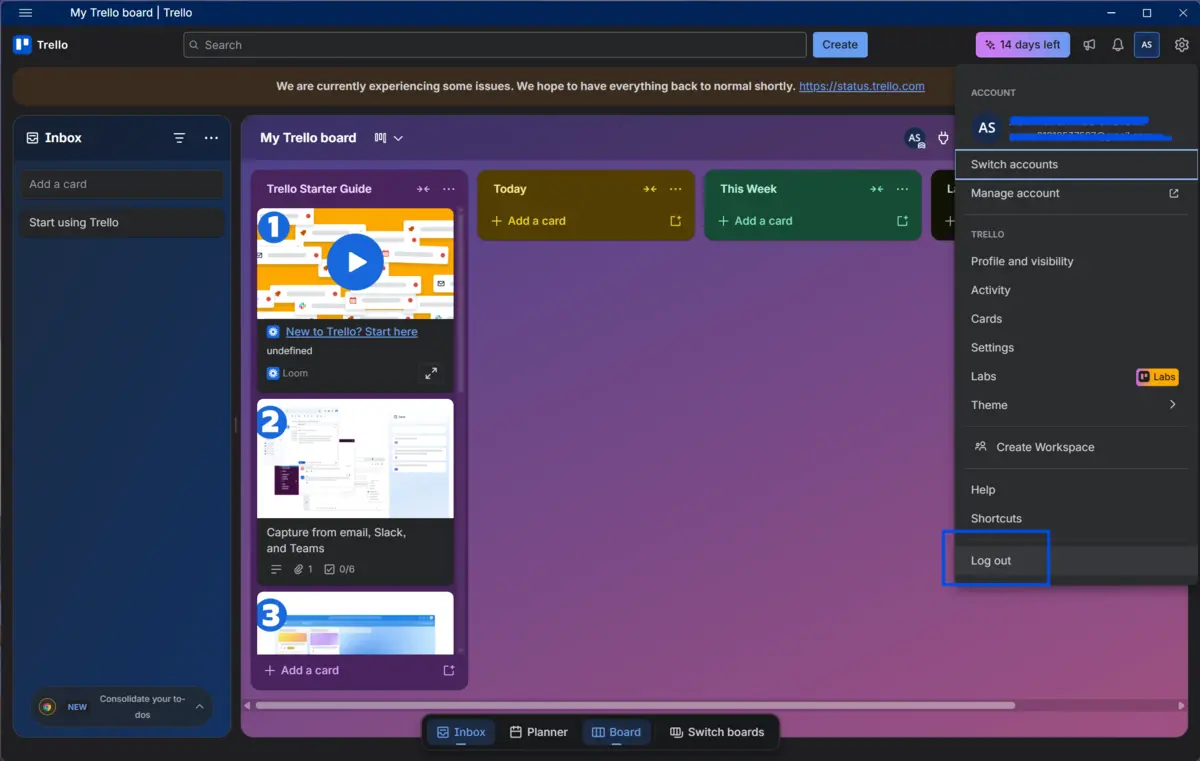
Sign out and sign back: Click your avatar at the top right, go to Settings, and select Log Out. Wait 30 seconds, then log back in with your credentials. This re-establishes your session token and often resolves authentication-related sync blocks.
-
Clear Trello's app cache: Press Win + R, type
%appdata%, and hit Enter. Navigate to the Trello folder. Delete the Cache, Code Cache, and GPUCache folders inside it. These cached files can become corrupted and interfere with data loading. The app rebuilds them automatically on the next launch.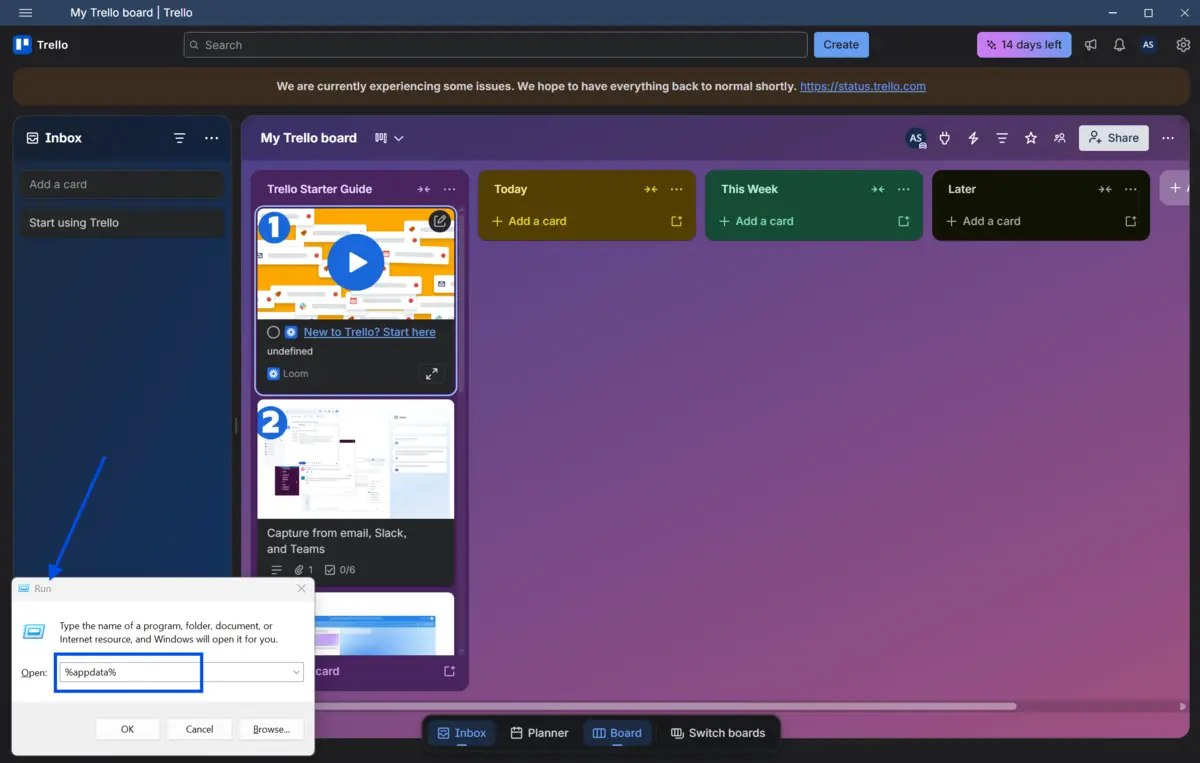
-
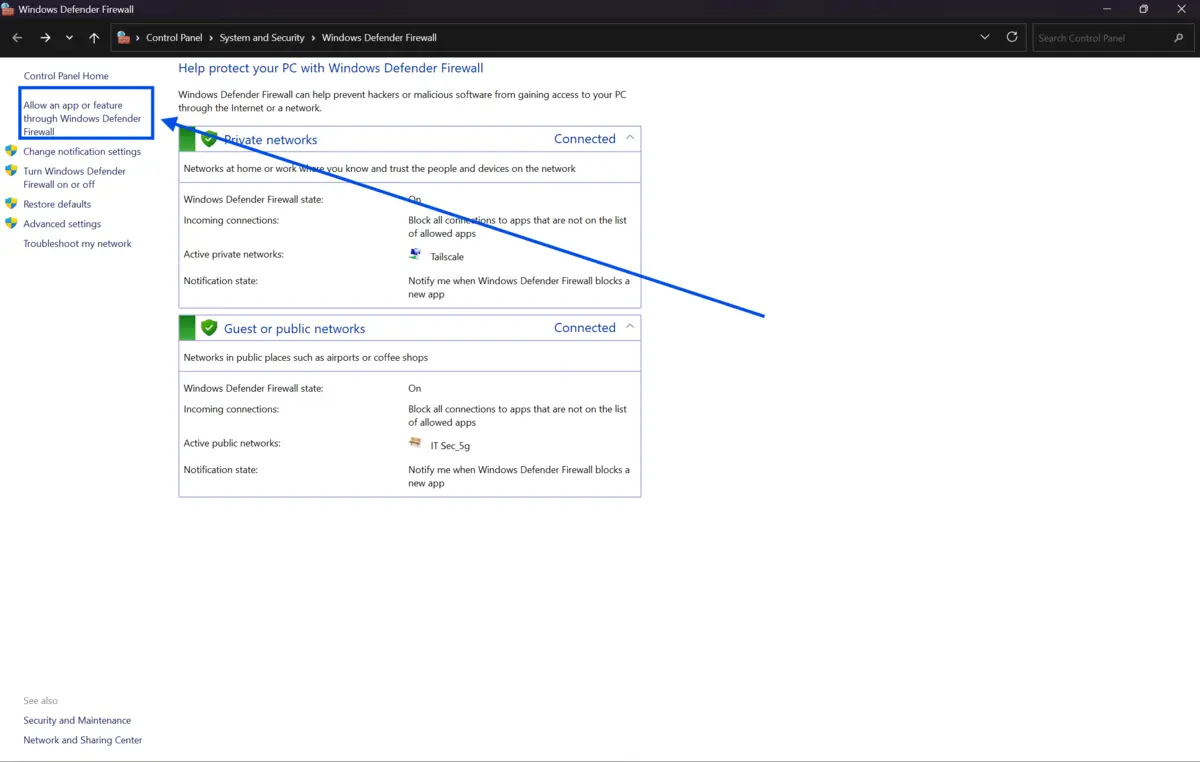
Check Windows Firewall or antivirus: Open Windows Security from the Start menu. Go to Firewall and Network Protection, then click Allow an app through firewall. Scroll down and confirm that Trello is listed and allowed on both private and public networks. If it is missing, add it manually.
-
Disable VPN or proxy connections: Some VPN configurations route Trello traffic through servers that introduce latency or block connections entirely. Turn off your VPN, reload the Trello app, and check if syncing resumes. If it does, adjust your VPN split-tunneling settings to exclude Trello traffic.
-
Update the Trello desktop app: Click your avatar in Trello, go to Help, and check for updates. Alternatively, download the latest installer directly from Fileion and run it over your existing installation. Older versions often carry known bugs that Microsoft's Windows 11 updates later expose.
-
Check Trello's server status. Visit status.trello.com in your browser. If Trello is experiencing a platform-wide outage or partial service disruption, no local fix will resolve the issue. Wait for Trello's engineering team to restore full service before continuing your troubleshooting.
-
Reinstall the Trello desktop app: Go to Settings, then Apps, find Trello, and click Uninstall. Once removed, press Win + R, type
%appdata%, and delete the remaining Trello folder. Then download the latest Trello installer from our site and install it fresh. A clean install resolves persistent syncing problems caused by corrupted installation files. -
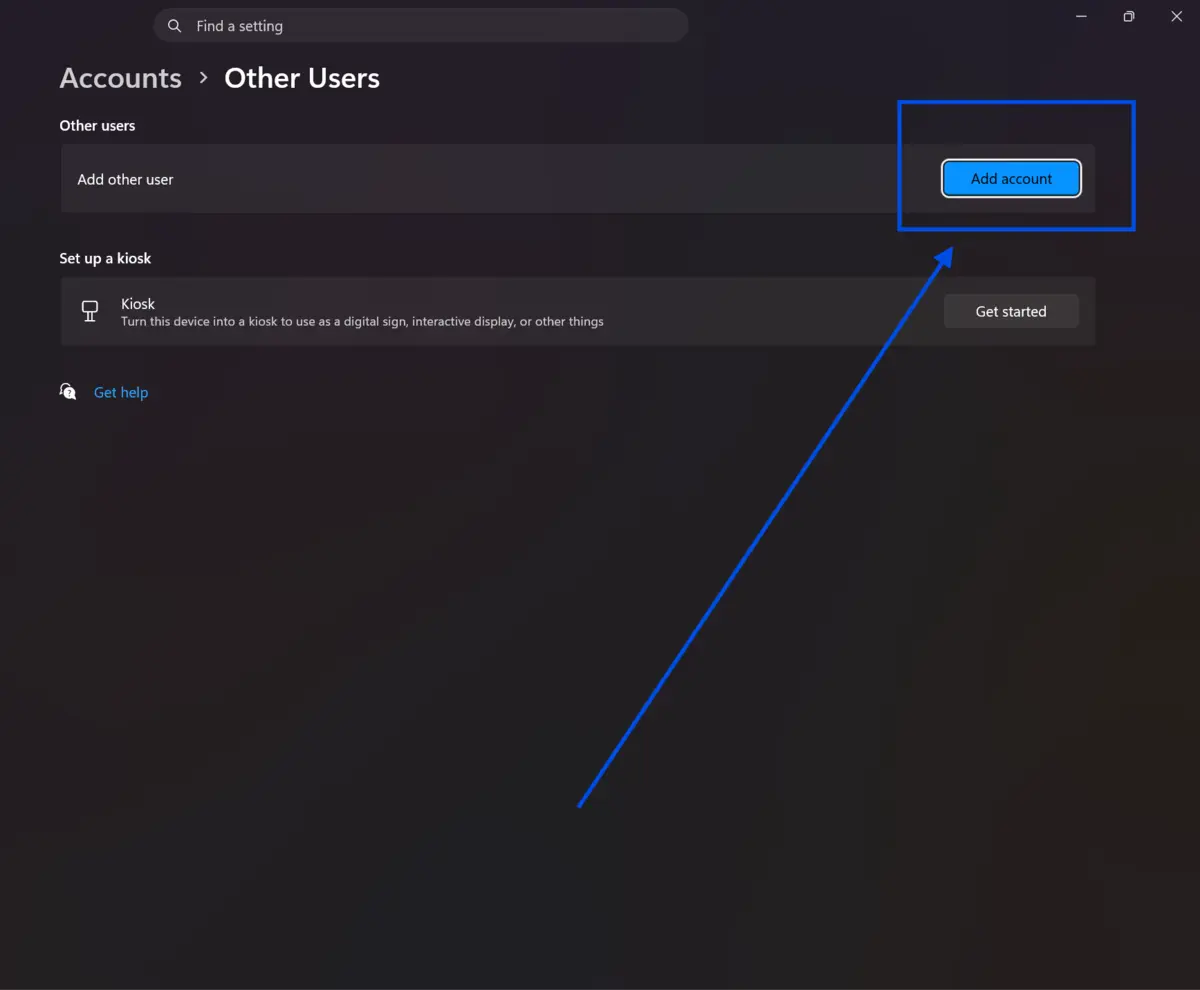
Create a new Windows 11 user profile: If the issue persists only on your account, your Windows user profile may be corrupted. Open Settings, go to Accounts, and add a new local or Microsoft account. Log in with that profile, install Trello, and test syncing. If it works, migrate your data to the new profile.
Quick Tips
-
Use Trello in your browser as a backup when the desktop app fails. Both use the same cloud data.
-
If you work on a corporate network, ask your IT team whether Trello's domains are whitelisted. Trello uses
trello.comandapi.trello.comfor syncing. -
Enable Windows 11's Focus Assist pause if background notification processing affects your app's performance.
-
Running Trello as Administrator can sometimes bypass permission-related sync blocks on restricted Windows environments.
Common Mistakes to Avoid
-
Major Windows 11 updates occasionally break Electron-based apps like Trello. Check Trello's release notes and community forums after major OS updates before assuming the app is the problem.
-
Simply uninstalling and reinstalling Trello without removing the AppData folder carries over the same corrupted files. Always delete residual data before reinstalling.
-
Clicking X on Windows 11 minimizes Trello to the system tray rather than closing it. The background process continues running in a broken state. Always use Quit from the tray menu.
Pricing & Availability
Trello offers four plans to fit different team sizes. The free plan supports up to 10 collaborators and 10 boards per Workspace at no cost. Standard costs $5 per user per month, billed annually, and adds unlimited boards, custom fields, and an AI-powered inbox.
Premium runs $10 per user per month and includes advanced views like Calendar, Timeline, and Dashboard, plus unlimited automation runs. Enterprise starts at $17.50 per user per month and adds organization-wide controls, SSO, and Atlassian Guard Standard.
Trello is available across Windows, Mac, iOS, Android, and web browsers, making it accessible on virtually any device you work from.
Final Verdict
Trello desktop app syncing issues on Windows 11 are frustrating but almost always fixable. The most common causes are corrupted cache files, firewall blocks, outdated app versions, and network interruptions. Working through the steps in this guide systematically will resolve the issue in most cases.
If you rely on Trello daily for managing tasks, tracking projects, or coordinating your team, keeping the desktop app in good shape is worth the effort. The desktop version gives you faster access, native notifications, and offline viewing that the browser version cannot always match.
Try the fixes today and get your boards back in sync. Download the latest version of the Trello desktop app from our site to start fresh with a clean, updated installation and avoid the issues that outdated builds create.
FAQs
Why does Trello not sync automatically to Windows 11?
Trello relies on an active internet connection and open network ports to sync in real time. On Windows 11, firewall updates, VPN configurations, or corrupted cache files can silently block the app from reaching Trello's servers. Clearing the cache and checking firewall settings resolves most automatic sync failures.
How do I clear the Trello cache on Windows 11?
Press Win + R, type %appdata%, and press Enter. Open the Trello folder and delete the Cache, Code Cache, and GPUCache subfolders. Relaunch the Trello app, and it will rebuild those folders with fresh data from the server.
Does reinstalling Trello fix syncing issues?
Yes, a clean reinstall fixes syncing problems caused by corrupted installation files. For best results, uninstall Trello through Windows Settings, then delete the remaining Trello folder from %appdata% before downloading and installing the latest version.
Can a Windows 11 update cause Trello to stop syncing?
Yes. Windows 11 feature updates can reset firewall permissions, update GPU drivers, or change system-level settings that affect Electron-based applications like Trello. If sync issues appear right after a Windows update, check firewall rules and try disabling hardware acceleration in the app.
Is there an official Trello page to check server status?
Yes. You can check real-time server status for all Trello services at status.trello.com. This page shows current uptime, any active incidents, and historical performance data, so you can confirm whether the issue is on Trello's end before continuing local troubleshooting.
Comments
Let us know about your thoughts
Explore more articles related to Trello
Here you will find all the latest tips and tricks about Trello. Also you will get many solution of problems which you may face while using this app.


Organize Chaos, Visually Simple
Trello turns messy workflows into clear, colorful boards where you can plan, track, and collaborate effortlessly. From personal to professional projects, its drag-and-drop simplicity, real-time sync, and smart automation make productivity feel easy, fun, and beautifully visual.